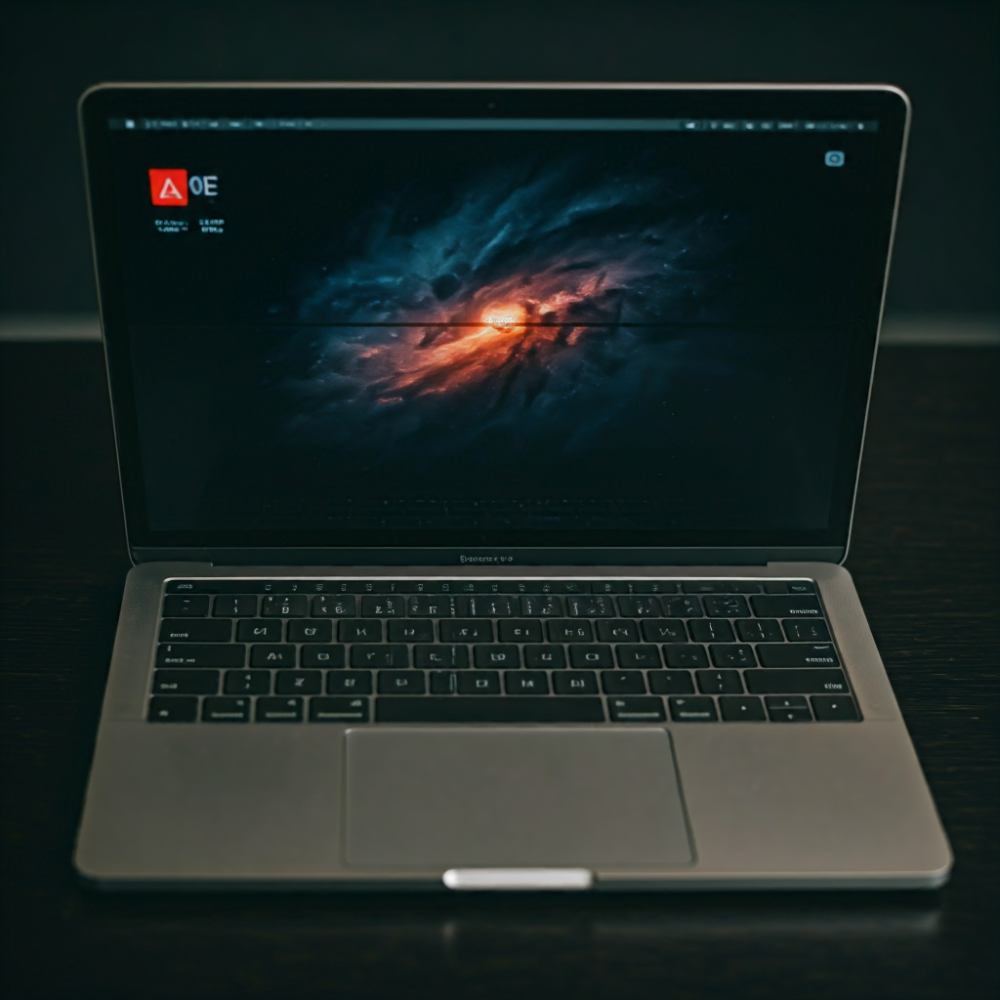
fix macbook overheating

Table of Contents

Is Your MacBook Overheating? Discover the Causes and Solutions to Keep It Cool

Is your MacBook feeling unusually hot, slowing down, or even shutting off unexpectedly? Overheating can be a common problem that affects both the performance and lifespan of your MacBook. In this article, we’ll explore the main causes of MacBook overheating, how to identify the symptoms, and effective solutions to keep your device running smoothly and cool.

Understanding the Symptoms of MacBook Overheating

  • Excessive Fan Noise : When your MacBook starts to overheat, you’ll notice that the internal fan works harder, producing more noise as it attempts to cool down the system.
  • Sluggish Performance : An overheated MacBook often results in slower processing speeds as the system tries to prevent damage by throttling performance.
  • Physical Warmth : Feeling excessive heat on the keyboard or bottom of your MacBook is a clear sign of overheating.
  • Unexpected Shutdowns : In extreme cases, a MacBook may shut down automatically to prevent damage due to excessive heat.

Common Causes of MacBook Overheating

High CPU Usage

Running multiple applications simultaneously or using high-performance software, like video editing programs, can increase CPU usage significantly, leading to overheating.

Blocked or Dirty Vents

MacBooks rely on airflow to cool down. Dust accumulation in vents or blocked air outlets can restrict airflow, leading to excessive heat buildup.

Intensive Graphics Processing

Running graphics-intensive programs, games, or even high-resolution videos can strain the MacBook’s GPU, causing it to heat up.

Poor Ventilation Environment

Using your MacBook on a soft surface, like a bed or sofa, or in a poorly ventilated room can trap heat and prevent proper cooling.

Battery Age and Health

Over time, a MacBook battery’s efficiency can decline. Old or degraded batteries can generate additional heat and contribute to overheating.

Software Glitches or Malware

Malware and software bugs can lead to high resource usage, increasing your MacBook's temperature and resulting in overheating.

Outdated macOS

Running outdated software versions can sometimes cause compatibility issues that lead to overheating. Regular updates can help optimize performance.

Solutions for MacBook Overheating

Solution 1 : Close Unnecessary Applications

  • Manage Applications: Open Activity Monitor (found in Applications > Utilities) to identify apps using a high percentage of CPU or memory.
  • Limit Background Apps: Close any unnecessary applications and browser tabs to lighten the CPU’s workload.

Solution 2: Ensure Good Ventilation

  • Use on a Flat, Hard Surface : A flat surface allows airflow under the MacBook, helping it to cool down.
  • Avoid Soft Surfaces : Avoid using your MacBook on soft surfaces like beds or sofas, as they can trap heat.
  • Elevate Your Device : Consider using a laptop stand to lift the MacBook off the surface, allowing for better airflow.

Solution 3: Clean the Vents and Fans

  • Use Compressed Air : Gently spray compressed air into the vents to remove dust and dirt. Regular cleaning can prevent dust buildup that restricts airflow.
  • Professional Cleaning : If you’re uncomfortable cleaning it yourself, consider visiting a professional to clean the internal components safely.

Solution 4: Reduce Graphics Usage

  • Adjust Graphics Settings : For models with adjustable graphics settings, lower the graphics performance in “System Preferences > Energy Saver.”
  • Disable Unnecessary Visual Effects : Turn off “Transparency” and “Motion” effects in “System Preferences > Accessibility” to reduce strain on the GPU.

Solution 5: Update macOS and Software

  • Check for Updates : Regularly update macOS and other applications to ensure compatibility and efficiency.
  • Enable Automatic Updates : This will ensure you get the latest performance and security improvements from Apple.

Solution 6: Monitor Battery Health

  • Check Battery Condition : Go to “System Preferences > Battery” to check the battery condition. If it shows “Service Recommended,” it may be time for a replacement.
  • Limit Battery Draining Activities : Reduce activities that quickly drain the battery, such as gaming or video editing.

Solution 7: Use Activity Monitor to Spot Resource-Heavy Processes

  • Analyze CPU Usage : Identify resource-heavy applications that may be causing excessive heat.
  • Kill Processes : Stop unnecessary processes or tasks by selecting them and clicking on the “X” button in Activity Monitor.

Solution 8: Perform an SMC Reset

  • SMC Reset : For overheating issues related to power or cooling, an SMC (System Management Controller) reset can often help. This reset can be done easily by following Apple’s instructions based on your MacBook model.

Solution 9: Invest in a Cooling Pad

  • Cooling Pad Benefits : Laptop cooling pads provide external airflow that helps to cool down your MacBook. They can be especially useful if you often work in warmer environments.

Solution 10: Consider Professional Repair Services

  • Fan Replacement or Repair : If you’ve tried the above solutions without success, it’s possible your fans may be malfunctioning.
  • Battery Replacement : An old battery may contribute to overheating, and professional battery replacement can alleviate the issue.

Preventive Tips to Avoid MacBook Overheating

  • Regular Cleaning : Clean the vents and fans at least once every six months to prevent dust buildup.
  • Avoid Running Multiple High-Power Apps : Limit the simultaneous use of power-intensive applications to avoid straining the CPU.
  • Monitor MacBook Health : Regularly check battery health, keep macOS up to date, and perform periodic maintenance checks.
  • Use a Cooling Pad in Hot Environments : In warmer climates, consider using a cooling pad or working in air-conditioned spaces.

FAQs on MacBook Overheating

Why is my MacBook Pro overheating so quickly?
Your MacBook Pro might overheat due to high CPU/GPU usage, dust buildup in the fans, poor ventilation, or an aging battery. Checking for high resource usage in Activity Monitor and ensuring proper ventilation can help mitigate this issue.
Can overheating damage my MacBook permanently?
Prolonged overheating can damage internal components and reduce the lifespan of your MacBook. If you notice frequent overheating, take steps to address it promptly to prevent permanent damage.
Should I be concerned about fan noise?
Fan noise is normal during high-performance activities. However, if the fan is consistently loud, it might indicate poor ventilation, high CPU usage, or dust buildup, which should be addressed.
Does an SMC reset fix overheating?
An SMC reset can fix issues related to power and cooling, including overheating. It’s worth trying if other solutions don’t work.