The MacBook is known for its sleek design, powerful performance, and reliable features. However, one issue that can cause frustration for many users is a malfunctioning keyboard. Whether certain keys aren’t responding or the entire keyboard has stopped working, this problem can disrupt productivity. In this article, we’ll explore the common causes of MacBook keyboard issues, possible solutions, and preventive measures you can take to avoid future problems.
Common Causes of MacBook Keyboard Issues
Before jumping into solutions, it’s important to understand the potential reasons why your MacBook keyboard may not be working. Identifying the root cause can help you apply the right fix.
Software Glitches: Sometimes, your MacBook’s keyboard might stop working due to software-related issues such as bugs, outdated macOS, or misconfigured settings.
Dirt and Debris: Dust, crumbs, or other debris can accumulate under the keys, causing them to stick or become unresponsive
Water or Liquid Damage: Spills are another common cause of keyboard malfunction. Even a small amount of liquid can damage the internal components of the keyboard.
Hardware Failure: Over time, wear and tear or manufacturing defects may cause the keyboard to fail. The butterfly and scissor switch mechanisms in MacBook keyboards are particularly known for being delicate.
Connectivity Issues: For wireless keyboards or detachable models, Bluetooth or connection problems can cause the keyboard to stop working.
Battery or Power Problems: If your MacBook is running low on power or experiencing battery issues, the keyboard may not function properly.
How to Fix a MacBook Keyboard That Isn’t Working
Now that we’ve identified the causes, here are some solutions you can try to resolve your MacBook keyboard issues.
Restart Your MacBook: The first and simplest step is to restart your MacBook. This can resolve temporary software glitches or errors that may be causing the keyboard to malfunction.
Click the Apple menu in the upper-left corner of your screen.
Select "Restart" and wait for your MacBook to reboot.
After restarting, test the keyboard to see if it’s working.
Check for Software Updates: If your MacBook is running outdated software, this could lead to keyboard issues. Make sure your macOS is up to date.
Go to the Apple menu and click on "System Settings" (or "System Preferences" in older versions).
Click on "Software Update."
If there are any updates available, click "Update Now" and follow the prompts.
Updating your macOS can fix bugs and improve compatibility with hardware, including your keyboard.
Clean Your Keyboard: Dirt, dust, and crumbs can easily get trapped under the keys, causing them to stop working. Cleaning your keyboard can often resolve these issues.
Turn off your MacBook and unplug it.
Use a can of compressed air to blow away any dust or debris from under the keys.
You can also use a soft brush or cloth to gently clean the surface of the keyboard.
Be careful not to press too hard on the keys while cleaning.
Test Your Keyboard in Safe Mode: Safe Mode disables non-essential software, which can help determine whether third-party applications or extensions are causing the keyboard to malfunction
Shut down your MacBook.
Turn it back on while holding the Shift key until the login screen appears.
Log in and test the keyboard to see if it works in Safe Mode.
If your keyboard works in Safe Mode but not in normal mode, a third-party app may be causing the issue. Consider uninstalling any recent software you installed before the issue started.
Check for Liquid Damage: If you’ve recently spilled liquid on your MacBook, it could have affected the keyboard. Unfortunately, liquid damage can be serious and may require professional repair.
Turn off your MacBook immediately to prevent further damage.
If possible, disconnect the battery.
Leave your MacBook to dry for at least 48 hours.
Take it to a certified repair technician to assess the extent of the damage.
When to Contact a Professional for MacBook Keyboard Repair
If none of the above solutions work, it’s time to consider professional repair services. For hardware issues, especially those involving internal components or liquid damage, it’s best to consult a technician. You can reach out to MakCity, a reliable MacBook repair service in Delhi. We specialize in various MacBook repairs, including keyboard replacements. You can contact us at 09958360093. If you’re near Nehru Place, visit Nehru Place location for expert services.
Preventing MacBook Keyboard Problems
To avoid future keyboard malfunctions, consider these preventive measures:
Regular Cleaning: Periodically clean your MacBook’s keyboard to prevent dust and debris buildup.
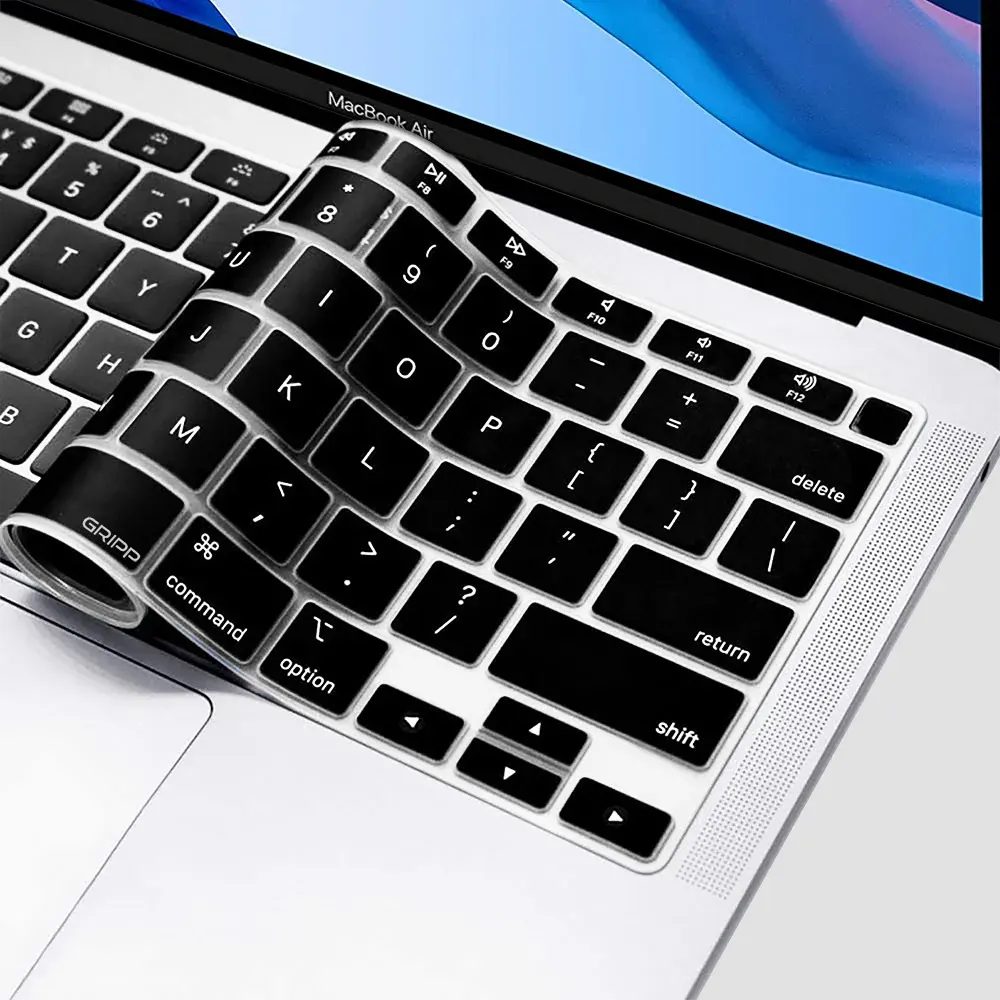
Use a Keyboard Cover: A silicone keyboard cover can protect your keys from dirt, crumbs, and spills.
Avoid Eating or Drinking Near Your MacBook: Keep food and drinks away to reduce the risk of spills.
Be Gentle with Your Keyboard: Avoid pressing the keys too hard, as this can cause wear and tear over time.
Conclusion
A malfunctioning MacBook keyboard can be a hassle, but with the right approach, you can often troubleshoot and resolve the issue. From software glitches to dirt and debris, there are several possible reasons why your keyboard may not be working. If the problem persists, it’s best to consult a professional like MakCity. Whether you need a MacBook Screen Replacement or a full keyboard replacement, they have the expertise to get your MacBook back to peak performance.By following the steps in this guide and maintaining your MacBook’s keyboard, you can avoid potential issues and extend the lifespan of your device.
 WhatsApp
 Call Now